Public demo. Revise, approve and read documents as anyone in the plant — switch people at the top right. The data is reset every hour. warpui.com About Warp Documents Docs Ask a question Support
Skip to content

Dashboard

Controlled documents with revisions.From this code.

Filament has no document control. Document types, documents and approvals are then set up in the panel.

Your code One plugin call
$panel->databaseNotifications()->plugin(    FilamentWarpDocumentsPlugin::make()        ->groups([            DocumentGroup::make('quality')                ->label('Quality team')                ->users(fn () => User::where('department', 'quality')),        ])        ->canManageUsing(fn (User $user) => $user->department === 'quality'));
  • ✓Everyone sees the approved revision that is in effect
  • ✓A new revision is a draft that only its author and approvers see until it is approved
  • ✓Groups decide who manages the documents
What you get
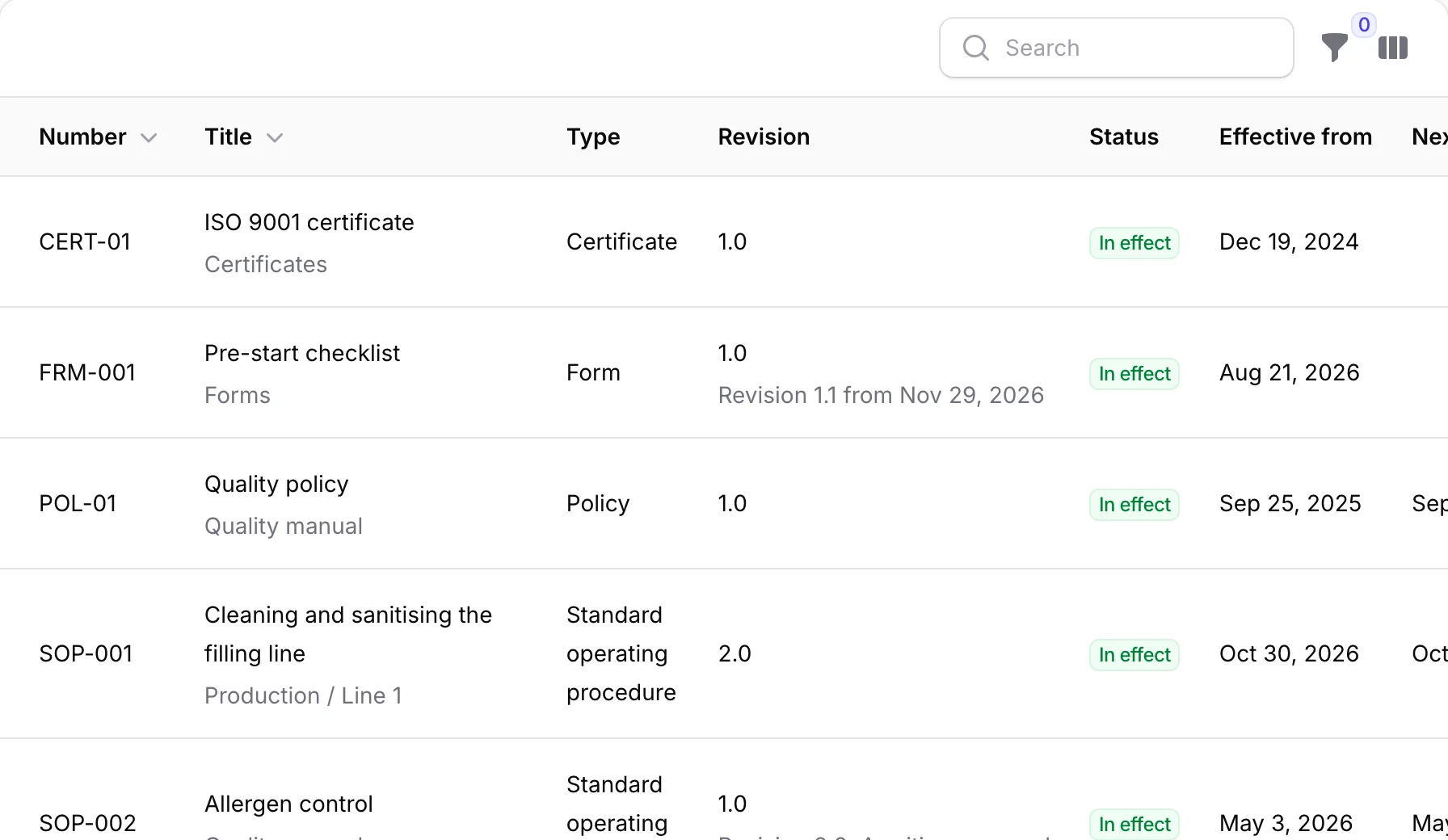
A list of documents with their revision, status and effective date A list of documents with their revision, status and effective date

The picture is this demo's documents, which add full-text search, PDF conversion and a copy check.

Welcome to the Warp Documents demo

A drinks plant with procedures, work instructions, a policy, forms and a certificate — some approved, some waiting, some due for review. You are Ana Silva, the quality manager. Try these in any order; every page also says what to try on it.

  1. 1
    Approve a revision

    Ben Carter added sesame to the allergen procedure and submitted revision 2.0. Open it from your tasks and press “Approve” — it then waits for Chloé Martin. Or press “Send back” with a reason: it goes back to Ben as a draft.

    My document tasks →
  2. 2
    See what changed

    Revision 2.0 of the cleaning procedure raised the rinse temperature and added a swab check. Removed words are struck through in red, added words underlined in green.

    Compare revisions →
  3. 3
    Revise a page

    The waste procedure is overdue for review. Press “Revise”, then “Edit the page”, change a sentence and press “Submit for approval”. It goes to the quality team, then to Chloé Martin.

    Open the procedure →
  4. 4
    Approve as someone else

    Nobody approves their own revision. After step 3, choose Ben Carter (quality team) under “Acting as” at the top right and approve it, then do the same as Chloé Martin.

  5. 5
    Read and confirm

    Choose Grace Okafor, a line operator, under “Acting as”: her “To read” tab lists the documents she must read. Open one and press “I have read and understood”.

    My document tasks →
  6. 6
    Two questions before “I have read and understood”

    Choose Emma Novak, a line operator, under “Acting as” and open “Weekly metal detector check” from her “To read” tab. “I have read and understood” asks two questions about the document. Answer one wrong: nothing is confirmed and she can answer again. Both right: the confirmation is recorded.

    My document tasks →
  7. 7
    Who has read it?

    The “Readers” tab of the cleaning procedure shows who has read revision 2.0 and who is overdue. Press “Remind” to notify the ones who have not.

    Readers →
  8. 8
    Print a controlled copy

    On the allergen procedure, press “More” → “Print controlled copy” and type where the copy goes. The PDF downloads with the copy number, the holder and today’s date stamped on every page.

    Open the allergen procedure →
  9. 9
    Collect an old copy

    A paper copy of the cleaning procedure’s old revision 1.0 still hangs on the Line 1 wall board. On the “Printed copies” tab, press “Mark as collected”.

    Printed copies →
  10. 10
    A QR code that knows whether the paper is current

    Every printed copy carries a QR code. On the “Printed copies” tab of the cleaning procedure, press “QR page” next to copy No. 1: this is what a phone shows after scanning the old paper on the Line 1 wall board — red, “Do not use this copy”. No login is needed there, and nothing of the document is shown.

    Printed copies →
  11. 11
    Effective on a future date

    Revision 1.1 of the pre-start checklist is approved but takes effect on December 2, 2026. Until then everyone keeps using 1.0.

    Open the checklist →
  12. 12
    Add a document

    Upload any PDF or write a page. The type gives it the next number, its approvers and its readers.

    New document →
  13. 13
    Import the documents you already have

    Moving in from shared folders? The import page has a sample register (Excel) and a ZIP to download. Drop them in and press “Check the files”: you see every row before anything is saved — three are ready, two say what is wrong with them.

    Import documents →
  14. 14
    Find a document by a word inside its file

    Type “ferrous” into the search box of the documents list: “Weekly metal detector check” appears, although the word is only inside its Word file. The line under the title shows the sentence it was found in. Word and Excel files are read by the plugin itself; to search inside PDFs, your server needs the pdftotext program (poppler-utils).

    Documents →
  15. 15
    A Word file that opens in the browser

    The weekly metal detector check is a Word file — yet it opens right here, because a PDF was made from it when it was stored. The grey note next to the revision says so, and the download button still gives the original Word file. In your own app this needs LibreOffice installed on the server, or a Gotenberg service — the plugin does not convert Word files by itself.

    Open the Word document →
  16. 16
    Documents on your own records

    Machines are the app’s own model: each shows the procedures linked to it, always at their current revision.

    Machines →
  17. 17
    The master list

    Every document in effect with its revision, effective date, owner, next review and reading progress — export it to Excel for the auditor.

    Master list →
  18. 18
    Who has read what, on one sheet

    People down the side, documents across the top: green with a date is read, amber is not yet, red is overdue. Turn on “Only people who still have to read” to see only who is left, and export it to Excel for the auditor.

    Read matrix →