Keep working without a signal.From this code.
Filament needs a connection for every click. Warp Offline keeps the records on the device, encrypted, and sends each change once when the signal is back.
FilamentWarpOfflinePlugin::make() ->resources([ InspectionResource::class, ]) ->pwa( name: 'Field inspections', shortName: 'Inspections', )- ✓Your own table() and form() keep working without a signal
- ✓Edits, photos and signatures wait on the device and sync once
- ✓Conflicts are merged field by field, or you choose
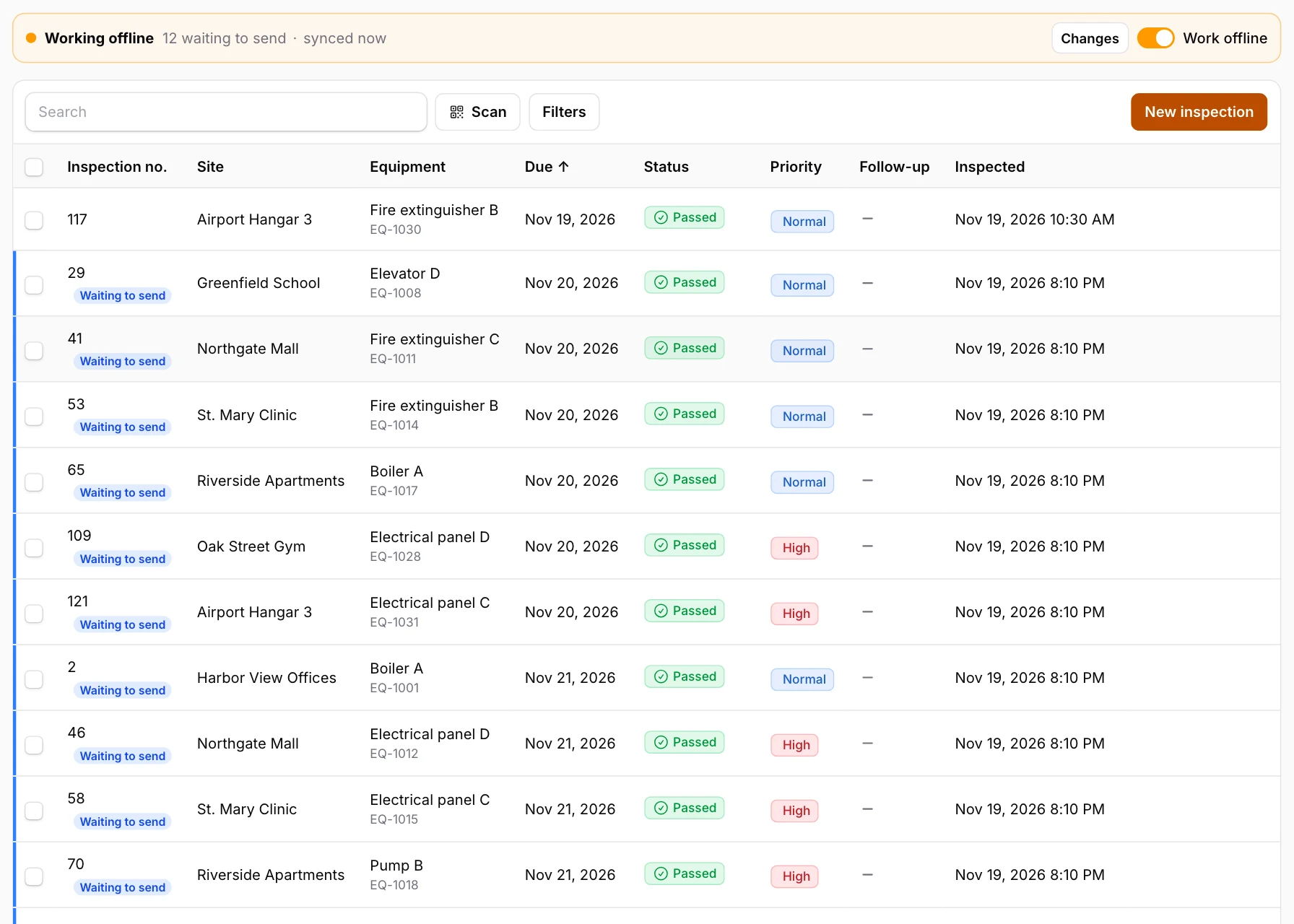
The picture is this demo's Inspections list with "Work offline" on and changes waiting to be sent.
Welcome to the Warp Offline demo
A building-services company: 8 customer sites, 32 pieces of equipment with QR labels and 128 inspections. You are Sam Inspector, an inspector. Follow the steps in order — the data is reset every hour.
-
1
Get this device ready
Open Offline in the menu and press “Prepare now”. Your inspections due in the next two weeks (overdue ones too), the equipment and the sites are copied to this device, encrypted.
Open Offline → -
2
Go offline
Open Inspections and switch on “Work offline” at the top of the list — or turn on airplane mode on your phone. The list now runs from this device: search, filters and sorting still work.
Open Inspections → -
3
Record inspection #109
Type #109 in the list’s search and tap the row. Change the Notes, take a photo and sign, then press “Save on this device”. The row now says “Waiting to send”.
Open Inspections → -
4
Meanwhile, the office changes it
This button plays a colleague in the office: it changes the Notes of inspection #109 on the server while your change is still on your device.
-
5
Come back online
Switch “Work offline” off (or airplane mode). Your change is sent, but the office changed the Notes too, so the server holds it back and the bar says “1 to resolve”: press “Changes”, then “Resolve”, and choose yours or the office’s, field by field.
Open Inspections → -
6
Scan a label
Open the QR labels on another screen (or print them). On the Equipment list, with “Work offline” on, press “Scan” and hold a label up to the camera — the phone’s or the laptop’s. That piece of equipment opens.
Open the QR labels → -
7
Install it as an app
On the Offline page, press “Install” if your browser shows it (Chrome, Edge, Android); otherwise use “Install app” in the browser menu, or Share → Add to Home Screen on an iPhone. It opens full screen, even without a signal.
Open Offline →
More to try
One feature each. Do step 1 first, so the data is on this device.
-
Buttons on any page, offline
Open Time clock and switch on “Work offline”. Press the button shown (“Clock in”, or “Clock out” if the last visitor is still clocked in), then the other one. Each press waits on this device. Switch “Work offline” off: both arrive with the time you pressed them, marked as offline.
Open Time clock → -
Buttons in a row that work offline
On Inspections, switch on “Work offline”. Open “Filters” and choose Status “Scheduled”: each row has “Start” and “Passed”. Press “Start” and the status turns “In progress” at once, marked “Waiting to send”. Online, the rows that are “Scheduled” have the same two buttons at the end of the row: they set the same values, at once.
Open Inspections → -
One button for several rows
On Inspections, switch on “Work offline” and choose Status “Scheduled” in “Filters”. Tick the boxes of a few rows: a “Passed” button appears above the list. Press it and all of them turn “Passed”, marked “Waiting to send”.
Open Inspections → -
Checked before saving, on the device
On Inspections, switch on “Work offline”, open an inspection and type 30 in “Pressure” (the field allows 0 to 25). Press “Save on this device”: the form stays open with a message under the field, and nothing is saved or sent.
Open Inspections → -
Change a value right in the list
On Equipment, switch on “Work offline” and tick or untick “In use” in a row. No form opens: the row is marked “Waiting to send”, and the change is sent when you are back online.
Open Equipment → -
A change the server refuses
On Equipment, switch on “Work offline”, open EQ-1002 and change “QR label” to EQ-1001, which another piece of equipment already has. Save, then switch “Work offline” off. The device could not check that, the server does: the bar says “1 not saved by the server”. Press “Changes”: the reason is shown under the change. Press “Fix” to correct it, or “Discard” to drop it.
Open Equipment → -
Typing is never lost
On Inspections, switch on “Work offline”, open an inspection and type something in “Notes”. Reload the page without saving, then open the same inspection: it says “Your unsaved input was restored.” and your text is back.
Open Inspections → -
A list you can only read
On Sites, switch on “Work offline”. The rows have “View” instead of “Edit”: the addresses and phone numbers are on the device to look up on the road, but cannot be changed offline.
Open Sites → -
Open pages without a signal
Turn on airplane mode (or turn Wi-Fi off) and reload Inspections: the page still opens, from this device. A page that is not set up for offline use, like QR labels, opens the “Offline” page instead of the browser’s error, so you can see what is on this device.
Open Inspections → -
Lock the data with a PIN
On Offline, press “Set PIN”, type 4 to 12 digits twice and press “Save”, then “Lock now” (it appears once a PIN is set). On Inspections, switch on “Work offline”: it asks “Enter your PIN” before it shows anything. Type the same PIN and press “Unlock”. Five wrong PINs delete the offline data on this device.
Open Offline → -
Every change, in a log
Offline changes lists every change that arrived from a device: when it was made on the device, when it arrived, and the result (“Saved”, “Conflict” or “Not saved”). Open a row to see the values that were sent.
Open Offline changes → -
A field that appears when it is needed
On Inspections, switch on “Work offline” and open an inspection. Under “Status”, choose “Needs repair”: the field “What is wrong” appears, and “Save on this device” does not save while it is empty. Choose “Passed” and the field is gone again.
Open Inspections → -
Rows you add offline
On Inspections, switch on “Work offline” and open an inspection. Under “Parts used”, press “Add a part” and type a part and a quantity; add a second row. ↑ and ↓ change the order, × removes a row. Press “Save on this device”: the rows wait on this device with the inspection, and arrive together when you are back online.
Open Inspections → -
A checklist with notes and photos
On Inspections, switch on “Work offline” and open an inspection. Under “Checklist”, press “OK” on one point and “Not OK” on another: a note field and “Add photo” appear under the point marked “Not OK”. Press “Save on this device” without a note and the form names the point that needs one. Type the note, add a photo and save: both wait on this device with the inspection.
Open Inspections → -
A checklist that depends on the record
On Inspections, switch on “Work offline” and open an inspection of a boiler. Under “Checklist for this equipment” you see the points for a boiler. Change “Equipment” to a fire extinguisher: the points change at once, without a signal. Every inspection uses one form; the device picks the points by the equipment.
Open Inspections → -
Draw on a photo, offline too
On Inspections, switch on “Work offline” and open an inspection. Under “Photos”, press “Choose photo” and pick a picture. It appears under “Marks on the first photo”: choose the arrow and drag to the spot that is wrong, or choose the pin, click the spot and type a note under the photo. Press “Save on this device”: the photo and the marks wait on this device, and arrive together when you are back online. The drawing field is Warp Markup’s MarkupField — it needs both plugins.
Open Inspections → -
A record with its history, read offline
On Equipment, switch on “Work offline” and press “View” in a row. The equipment opens read-only, and under it “Inspection history” lists its inspections, the latest due date first, as they were at the last sync. Press “Edit” at the bottom to change the equipment.
Open Equipment → -
Every device, and emptying a lost one
Open “Offline devices”: this device is listed with “Last synced” (in this demo you see only your own devices). Press “Delete data on the device” and confirm, then open Inspections: at the next sync the offline data on this device is deleted, you are signed out — the demo signs you in again — and a red notice says “An administrator deleted the offline data on this device.”
Open Offline devices →