Warp Map demo — a Filament plugin for territories and route planning. Draw, plan, reorder and delete anything; the data is reset every hour. warpui.com About Warp Map Docs Ask a question Support
Skip to content

Dashboard

Your customers on a map, split into territories.From this code.

Filament has no map page. Your customers stay your own Eloquent models; Warp Map adds the map, the territories and each person's route.

Your code One method on the model, one plugin call
// Your model: where it is on the mappublic static function mapLocation(): MapLocation{    return MapLocation::make()        ->latitude('lat')        ->longitude('lng')        ->postalCode('postcode')        ->title('name');}// Your panel$panel->plugin(    FilamentWarpMapPlugin::make()        ->locations([Customer::class])        ->people(Technician::class, title: 'name'),);
  • ✓Every customer on the map, in groups that open as you zoom in
  • ✓Territories drawn on the map or listed by postal code
  • ✓Draw around places to add them to someone's day
What you get
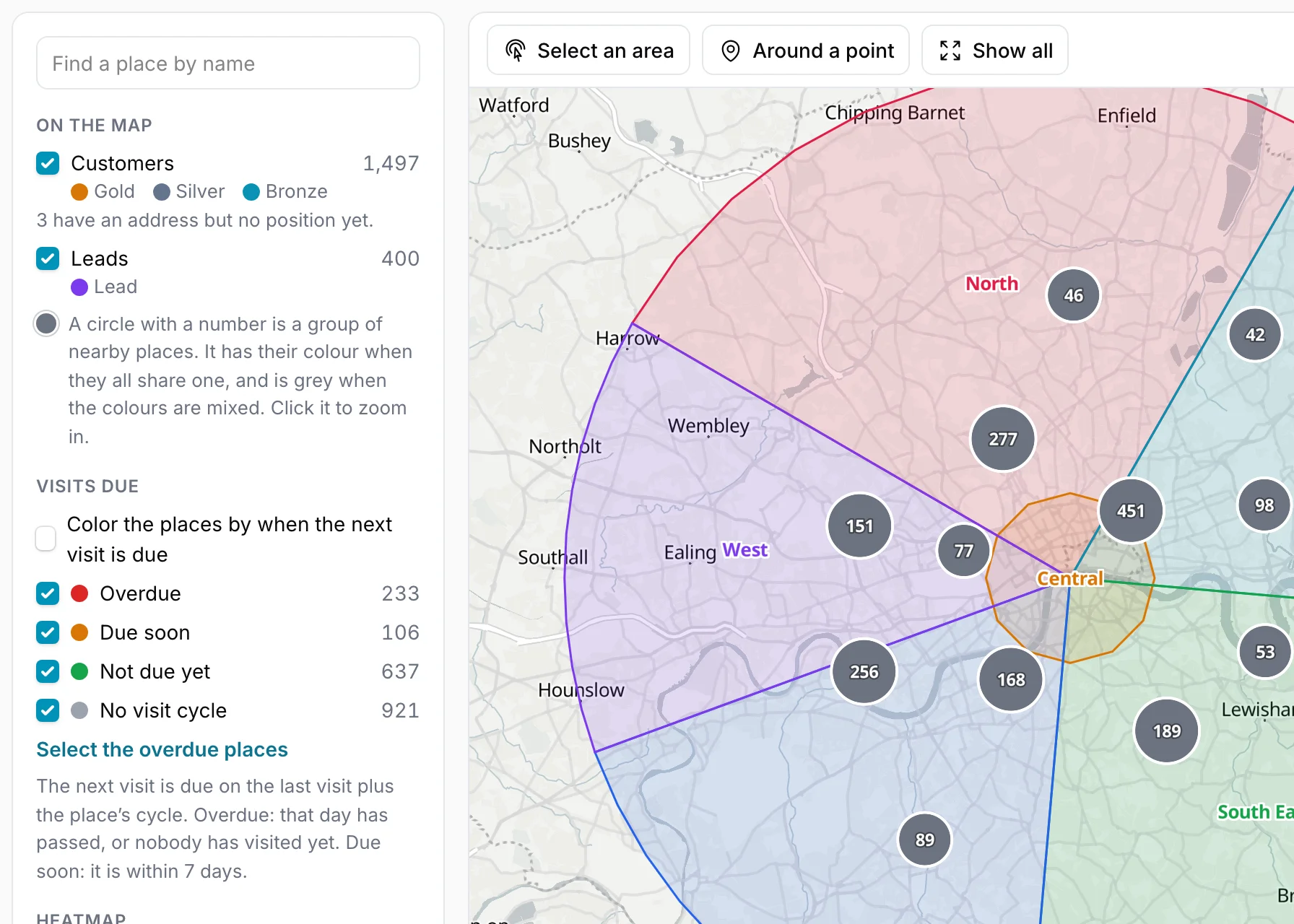
A map of London with customers in numbered groups, colored territories and the filters on the left A map of London with customers in numbered groups, colored territories and the filters on the left

The picture is this demo's Map page, which adds leads, visit cycles and the territories of five people.

Welcome to the Warp Map demo

A heating and cooling maintenance company in London: 6 technicians, 1,500 customers, 400 leads and 6 territories. You are Grace Harper, who plans the technicians’ days. Try these in any order.

  1. 1
    Draw around customers

    On the map, press "Select an area", hold the mouse button down and draw around a few customers. Then press "Add to a route" and give them to a technician for today.

    Open the map →
  2. 2
    Who is nearest?

    Click any customer on the map, then "Who is nearest?". You see the technicians closest to it — from their home, or from a visit they already have today.

    Open the map →
  3. 3
    Only the gold contracts

    Under Filters, click "Contract" to open its choices and tick Gold: only gold customers stay on the map, and the number next to Customers goes down to them.

    Open the map →
  4. 4
    Everything nearby

    Press "Around a point", choose a distance next to "Within" and click the map: every place within that distance is selected and listed on the left.

    Open the map →
  5. 5
    Who is overdue for a visit?

    On the map, under "Visits due", tick "Color the places by when the next visit is due". Gold customers are serviced every 30 days and Silver ones every 90: red is overdue, amber is due within 7 days. Untick "Not due yet" and "No visit cycle" so only those stay, draw around a few red ones with "Select an area", then press "Add to a route".

    Open the map →
  6. 6
    Where the money is

    On the map, under "Heatmap", tick "Show where the places are densest", then set "Weight by" to Contract value: the red moves to where the big contracts are. On Territories, set "Shade by" to Contract value to see which territory carries the most.

    Open the map →
  7. 7
    Share 50 visits between the technicians

    On the map, press "Around a point", set "Within" to 1.2 mi and click the middle of London to select the places nearby. Press "Share between people", set the date to tomorrow and press "Show the proposal": every technician gets about the same number, near their home, with their day already in order. Press "Adopt: add to the routes" to keep it, or "Discard the proposal".

    Open the map →
  8. 8
    Put a day in the best order

    Daniel’s visits are still in the order they were added. Press "Best order" and watch the miles and the time he is back home go down. Customers with opening hours are still reached on time.

    Open Daniel’s route →
  9. 9
    Move a visit by hand

    Drag a visit up or down in Maya’s list. Every arrival time changes at once, and a red "too late" badge appears when a customer would already be closed.

    Open Maya’s route →
  10. 10
    Redraw a territory

    On Territories, press "Change the shape" next to Central and drag a corner. When you save, every customer inside moves to Central, and the numbers update.

    Open the territories →
  11. 11
    Try a fairer split

    Press "New plan", choose an automatic split into 6 territories with about the same contract value, then "Compare plans". Adopt it if you like it better — or delete it.

    Open the territories →
  12. 12
    The technician’s phone

    This is what Maya sees on her phone. Press "Directions" to open Google Maps, then "Done" when the visit is finished. Try it at phone size.

    Open Maya’s day →
  13. 13
    With Warp Scheduler

    The app also keeps its own visit records in a Warp Scheduler timeline, separate from the routes: five per technician today, in an order that zig-zags across town. Right-click a visit and choose "Put the day in the best order". Drag a visit right next to a far one: the travel time check warns you.

    Open the visit schedule →
  14. 14
    Any list as a map

    On Customers, press "Map" above the table: the rows become a map of the same customers. Set the Contract filter to Gold or search for a name — the map keeps only what the list keeps.

    Open the customers →
  15. 15
    Due dates from your own records

    On Leads, the "Next visit" column counts from the last sales call the app keeps in its own table, not from Warp Map’s routes. Press "Log a call" on a lead marked "days late": the badge turns green. Warp Map reads the last call of every lead on the page in one query (lastVisitsUsing()), so it stays fast with thousands of places.

    Open the leads →
  16. 16
    Draw an area in your own form

    Open the zone “Same-day call-out” and drag the white dot on the edge of the circle: the number of customers inside changes as you drag. Or press "Draw a shape" and click a shape of your own. It is saved in one JSON column, and your code can ask it "is this point inside?".

    Open the service zones →
  17. 17
    In your own forms

    Open a customer and edit it. Drag the pin on the small map to the exact door. The table can add customers to a route, too.

    Open the customers →
Below: Warp Map’s two dashboard widgets. “Map” shows the customers and territories — “Open the map” goes to the full map. “Today's routes” shows each technician’s progress: mark a visit “Done” on “My route” and come back.
Loading...
Loading...