Approvals that follow your org chart.From this code.
Filament has no approval flow. Register your models, and set up departments, positions and the flows in the panel.
// PanelFilamentWarpFlowPlugin::make() ->models([PurchaseRequest::class, ExpenseClaim::class]);// Modelclass PurchaseRequest extends Model implements Approvable{ use HasApprovals;}// Edit pageprotected function getHeaderActions(): array{ return [...ApprovalActions::make()];}- ✓Submit, approve, return or reject from the record's own page
- ✓Approvers come from the org chart: the applicant's manager, then up
- ✓The submit dialog shows who it goes to, in order, before anything is sent
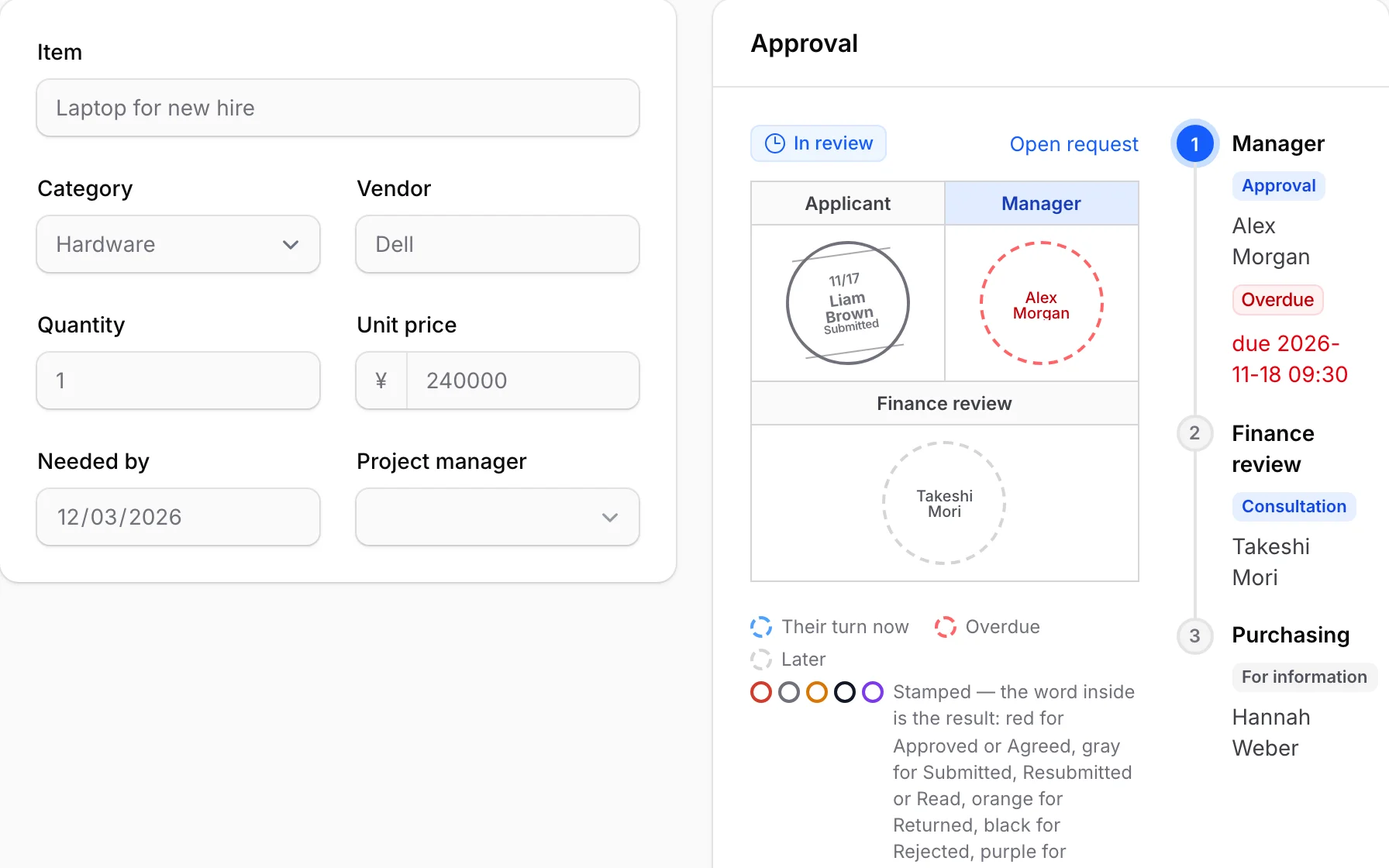
The picture is a purchase request in this demo, which adds more actions and condition fields.
Waiting for your approval
The five requests with the nearest due time. Overdue ones come first.
Your requests that were returned
Requests returned to you to fix and resubmit, newest first.
| Request | Returned by | Returned |
|---|---|---|
|
Client dinner with Contoso REQ-2026-00006 · Expense claim |
Takeshi Mori Please attach the receipt and list the attendees. |
4 days ago
|
Welcome to the Warp Flow demo
A small company with three levels of departments, approval flows, request forms and requests in every state. Try these in any order.
-
1
Start from your numbers
The three numbers above this guide are yours as Alex Morgan: “Waiting for your approval” counts the requests in your inbox, “Overdue” the ones among them past their due time, and “Returned to you” your own requests that were sent back to you. Press a number to open exactly those requests. The two lists under the numbers show the same requests; press a row to open it.
Open the overdue requests → -
2
Approve or return
You are Alex Morgan, a sales manager. Six requests wait in your inbox. Open one, read the thread and approve it — or return it with a question.
Open the inbox → -
3
See an automatic approval
Sofia’s “Paid leave, two days” waited more than 48 hours for you, so the “Leave request” flow approved your step by itself. On the request, the stamp says “Automatic” instead of your name and the route says “Approved automatically”. To see the setting, open “Leave request” under “Approval flows”, click the step “Manager” and look at “When the due time passes”.
Open the leave request → -
4
Ask one more person
Open “Laptop for new hire”, press “Add an approver” and choose Noah Kim. He joins your step: the route shows him as “added by Alex Morgan”, and because everyone on the step has to approve, the request now waits for him as well as for you.
Open the laptop request → -
5
Hand over a stuck step
Your “Demo server × 2” request waits on Emma Wilson. Press “Reassign”, give her step to Noah Kim and write why. Emma is told, Noah gets the step with a new due time, and the discussion records who changed it and why.
Open the demo server request → -
6
See what changed
You returned Sofia’s “Team offsite lunch” for being over the limit. She lowered the amount and resubmitted: the request shows the old and the new amount.
Open the request → -
7
Answer from the email
On any request waiting for you, open the page the approval email links to, and approve or return it there — no sign-in.
Pick a request → -
8
Use a request form
No model needed: file a “Business trip” or “Leave request” made from fields in the admin screens. Its cost decides whether the director signs too.
New request → -
9
Add rows that add up
File a “Supplies order”: its form has a table. Press “Add a row” for each item and enter a quantity and a unit price. Each row shows its amount, and the total is under the table. Save it and press “Submit for approval”: with a total of 100,000 or more, a director is on the route as well.
New request → -
10
Submit a request
Open the projector purchase request and press “Submit for approval”. The dialog shows who it will go to before you send it.
Open the projector request → -
11
Answer a return
Your client dinner claim was returned by Finance. Reply in the thread, @mention someone and resubmit.
My requests → -
12
Become someone else
Use “Acting as” at the top right to switch to Emma Wilson (Sales director) or Takeshi Mori (Finance) and carry on the same request.
-
13
Change a flow
Add a step with +, branch on the amount, then press Simulate and pick an applicant to see the route drawn on the flow.
Open the editor → -
14
Move people
Departments, positions and members drive every route. Sofia’s move to Sales 2 takes effect on December 1, 2026, and Aiko also leads a Platform team — on the org chart, pick a date before the move and one after it.
Org chart → -
15
Audit every request
Open “All requests”: every request of the company with its number, the person it waits on and when it was submitted, also the ones you are not part of. Filter the list and press “Export CSV” to get the same list as a CSV file.
All requests → -
16
Find the bottleneck
Which step makes requests wait longest, and who has the oldest ones? Ken Ito is away from November 23, 2026 to November 25, 2026 — in the meantime, his approvals go to his manager.
Approval analytics → -
17
Talk on a record that has no approval
Not everything needs an approval. Each order under “Orders” has its own discussion, and “Threads” lists the orders you follow. Two of them have comments you have not read yet.
Open the orders →